
If you’re here, you’ve probably seen those piano videos where every note you play turns into light, and you want to make one of your own without learning video effects software. In this article I’ll show you how I make them with Piano Live VFX, a piano visualizer that runs in the browser: plug in a MIDI keyboard, pick a look, and record a video with sound, ready for Reels or YouTube. Setting it up takes about ten minutes, and you can follow along at home with a digital piano, a MIDI controller or just your computer keys.
Plug in your MIDI keyboard and open the visualizer in Chrome or Edge, or play with your computer keys.
Pick one of nine looks and fine-tune colors, fog and glow.
Record your performance, then export it as a video in any look and shape.
Piano Live VFX runs in your browser on Mac, Windows, phones and tablets, with nothing to install. You sign in with your 360apps account to open it.
Live visualizer or MIDI file visualizer: which one do you need?
“Piano visualizer” and “MIDI visualizer” cover two kinds of tools. It helps to know which one you’re after:
| Live visualizer | MIDI file visualizer | |
|---|---|---|
| Input | The notes you play right now on a MIDI keyboard | A .mid file you load |
| Typical look | Lit keys with light, sparks or glows rising from each note | Falling notes (a piano roll) coming down onto a keyboard |
| Good for | Covers, Reels, live streams, lessons | “Learn this song” videos, pieces you can’t play in one take |
| Piano Live VFX | Yes: light ribbons rise while you hold a note | Yes: open a .mid file, or replay your own take as falling notes |
Step 1: Connect your MIDI keyboard
Connect your digital piano or MIDI controller to the computer with USB and open Piano Live VFX in Chrome, Edge or Opera. Allow MIDI devices if the browser asks. The keyboard connects by itself: its name appears in the small pill at the top, and a Pedal pill lights up when you press the sustain pedal. If you plug the keyboard in after opening the page, it shows up within a second.
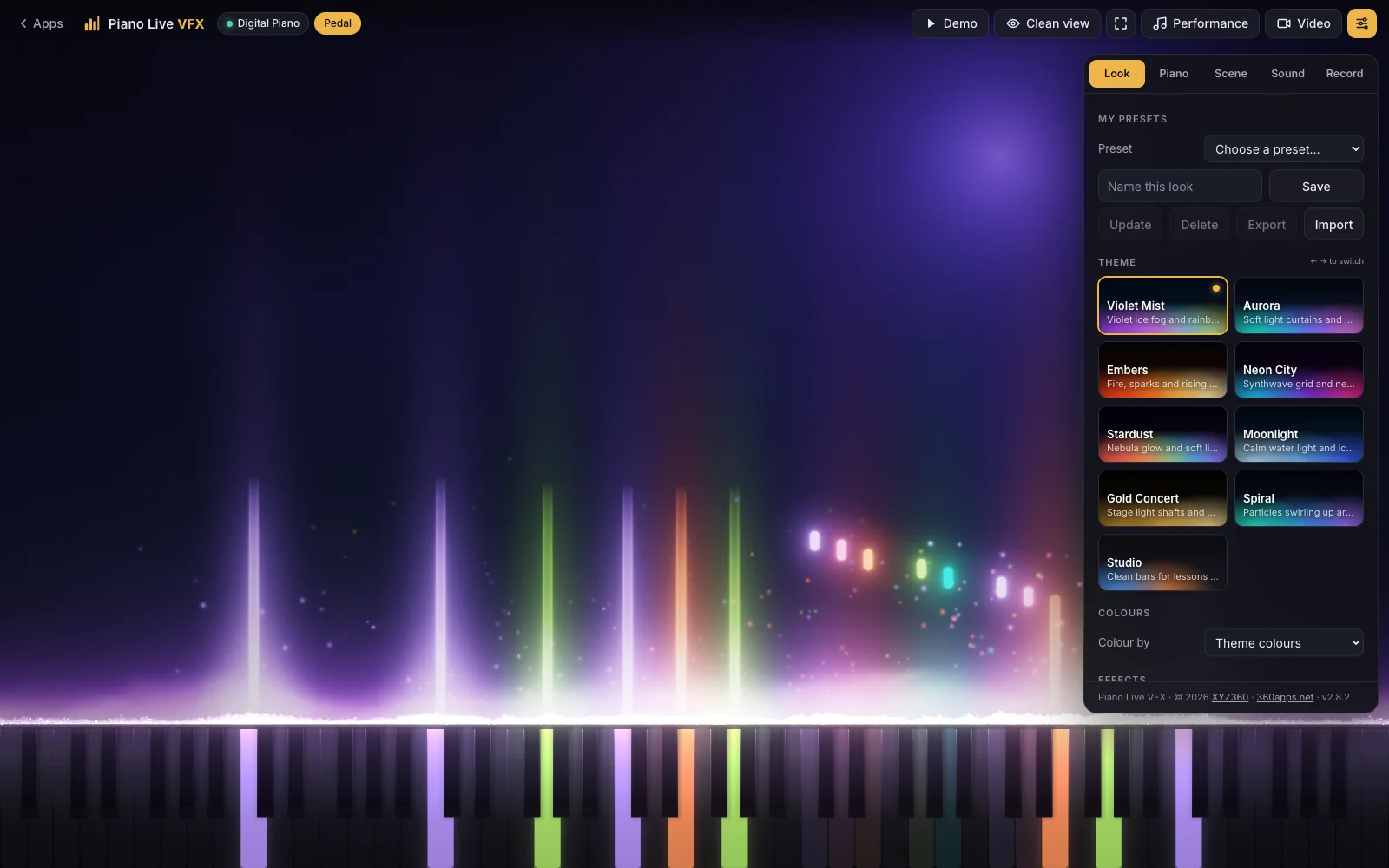
The light follows how you play. Hard notes send up bigger, brighter light than soft ones, and a ribbon keeps growing for as long as you hold the key. If your keyboard feels too light or too heavy for that, Piano → Velocity response sets how hard you have to play for the big effects.
No MIDI keyboard at hand? You can still play. The computer keys work like a small piano, and you can tap or click the keys on screen, with several fingers on a touch screen.
| Keys | What they do |
|---|---|
| A S D F G H J K | White keys |
| W E T Y U | Black keys |
| Z / X | One octave down / up |
| C / V | Softer / harder |
| Space | Sustain pedal |
| ← / → | Previous / next theme |
Step 2: Pick a look
The Look tab has nine themes. Each one has its own light, particles, fog and background. You can switch with the arrow keys while you play, so it’s easy to try them all on the same piece. The app opens with Violet Mist: violet ice fog and a rainbow in every octave.
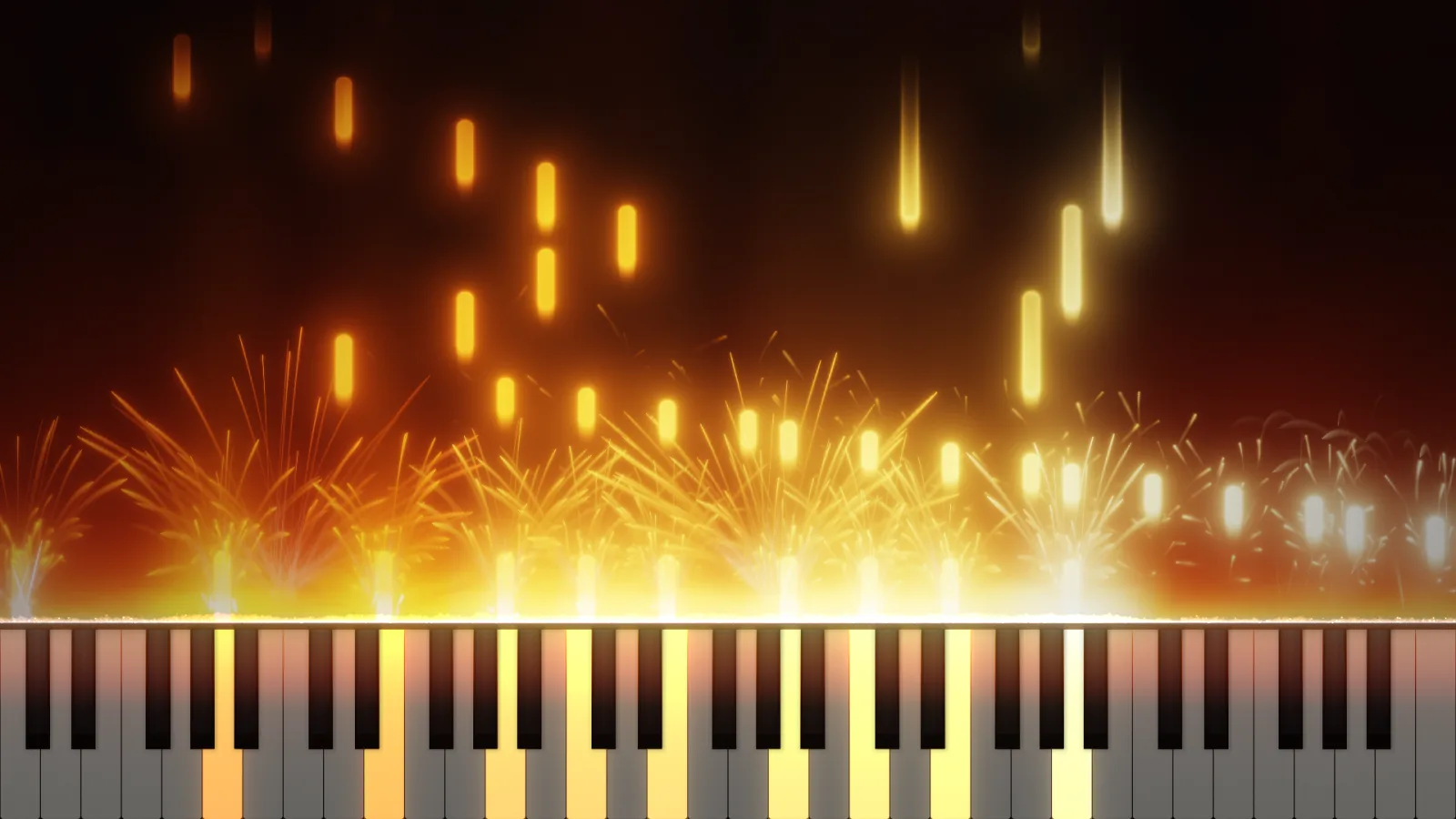
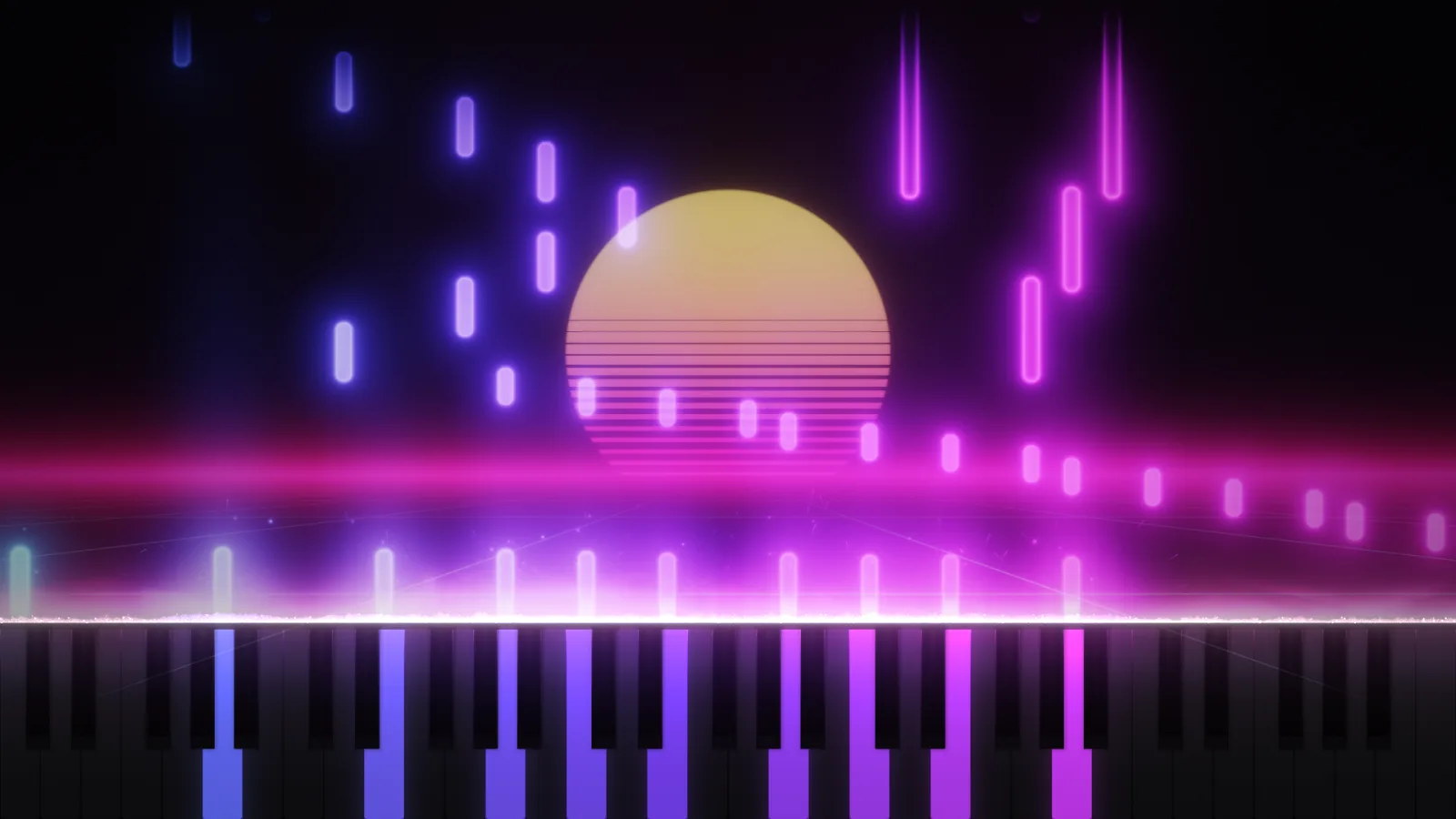
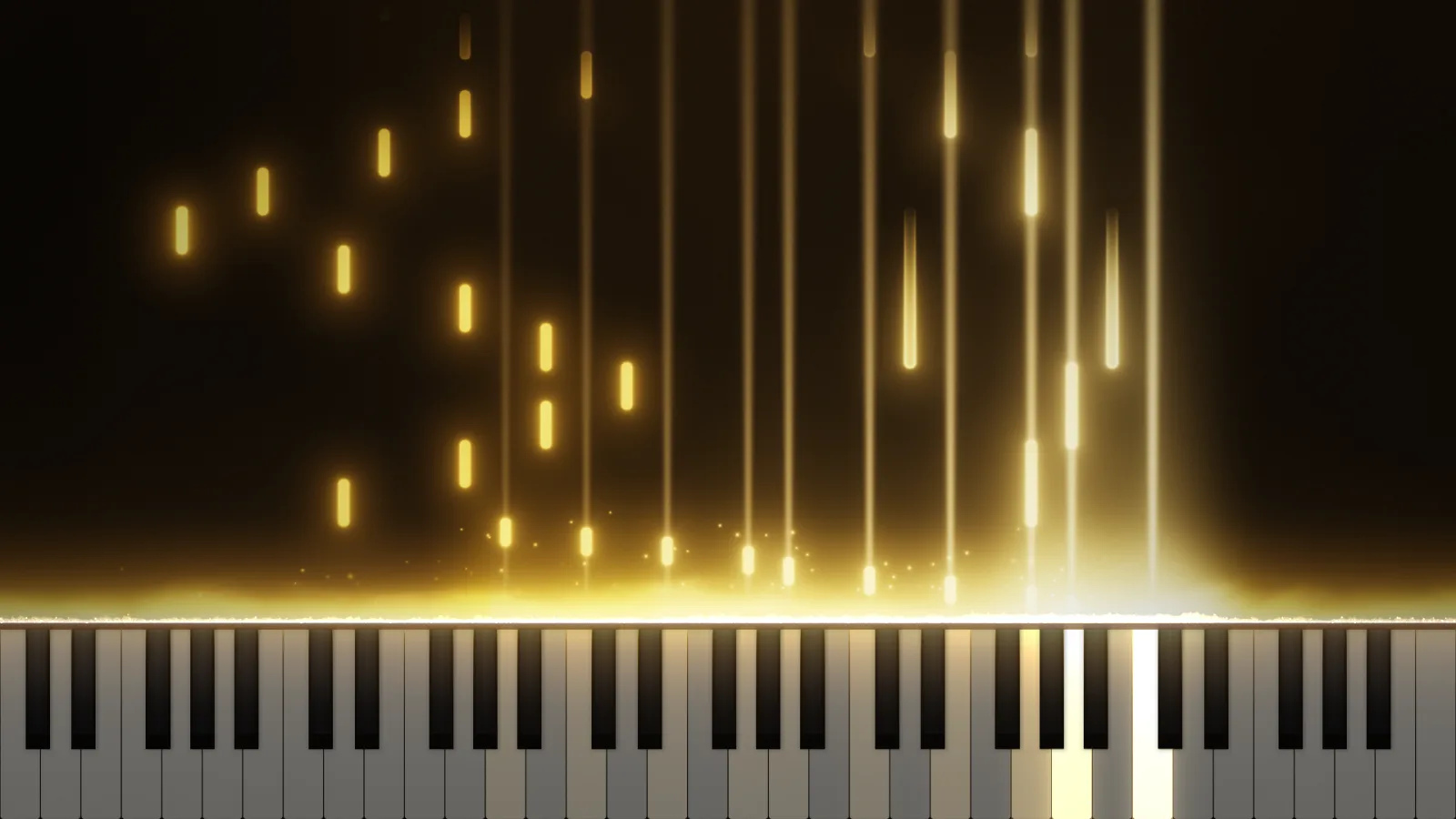
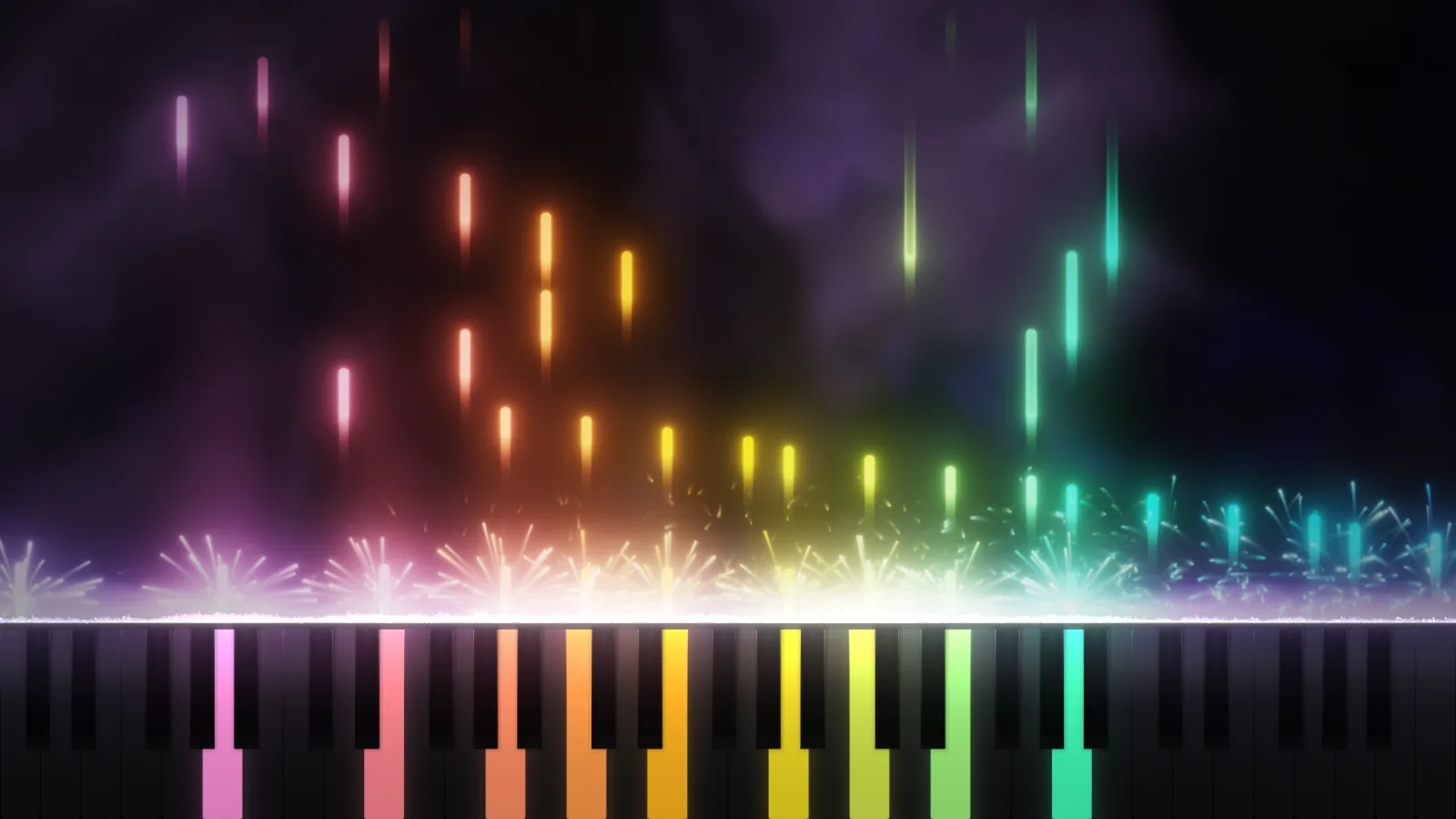
The other five are Aurora (soft light curtains), Moonlight (calm water light and ice fog), Spiral (particles swirling up around every note), Studio (clean bars for lessons) and Violet Mist. Every theme is a starting point; these are the settings worth knowing:
| Setting | Options | Why change it |
|---|---|---|
| Colour by | Theme, note (circle of fifths), rainbow across the keyboard, rainbow in every octave, left and right hand, chord, one color | Match your brand, or make the music easier to read |
| Ice fog | On, only in Moonlight, off; density, height, motion, tint | Fog gives depth; turn it down for a cleaner, sharper look |
| Particle amount | 0.2× to 2× | Lower it for fast, dense pieces so the screen doesn’t fill up |
| Ribbon speed / width | 0.4× to 2.2× / 0.4× to 1.4× | Slow, wide ribbons suit ballads; fast, thin ones suit quick runs |
| Glow amount and spread | Sliders | How much the light blooms; less glow reads better on a phone |
| Calm motion | On / off | Fewer particles and no flashes, for viewers sensitive to motion |
Your settings stay in the browser you use. When you find a look you like, type a name under My presets and press Save. Export puts all your presets in a file you can import on another computer.
Step 3: Record a video with sound
The Record tab gives you two ways to get a video. Most of the time the first one is the better choice:
| Way | How it works | Best when |
|---|---|---|
| Record your performance (N) | Saves what you play: notes, velocity and pedal, not a video. Then change the theme, colors or shape and press Export video of the replay. | You want to try several looks, or make a 9:16 and a 16:9 version of the same take |
| Record a video directly (R) | Films the effects and keyboard as they happen, never the controls. Press R again to stop and save. | You want the sound of your own piano or audio interface in the video |
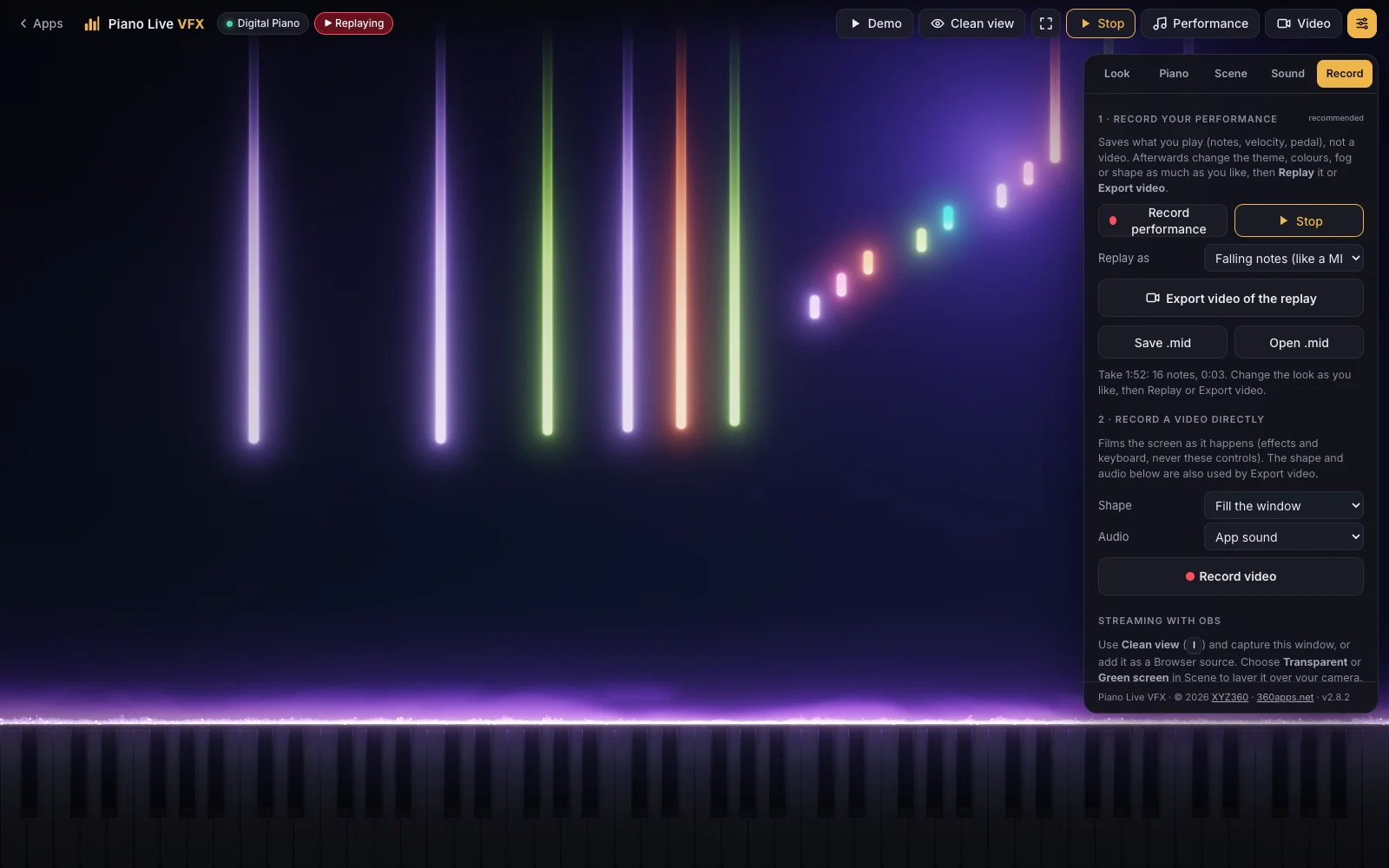
Under Shape, pick 9:16 vertical (1080×1920) for Reels, TikTok and Shorts, 16:9 (1920×1080) for YouTube, or 1:1 square. With 9:16, Reels safe area raises the keys above the captions and buttons those apps lay over the bottom of the video.
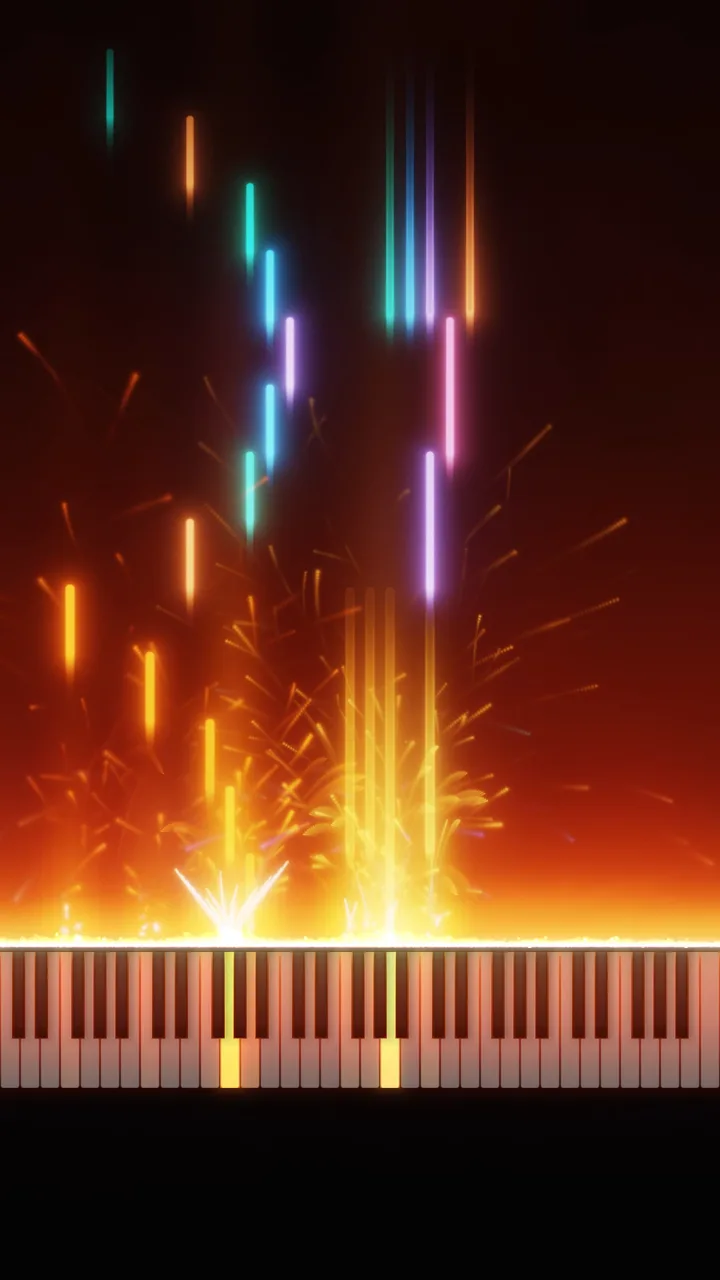
Under Audio, choose where the sound comes from:
- App sound: the built-in piano. Right for the computer keys, a .mid file and Export video of the replay.
- Microphone / audio interface: the sound of your own digital piano or your mix, through your audio interface or the piano’s USB audio.
- App sound + microphone: both, for example the built-in piano plus your voice.
- No audio: add the sound later in your editor.
The video goes to your downloads as an MP4 (H.264) where the browser can make one, otherwise as WebM. You can also save your take as a .mid file, to open it later or edit it in your music software.
How to turn a MIDI file into a piano video
If you have a song as a .mid file, maybe exported from your DAW or played in over several takes, you don’t need to play it live:
- Open the Record tab and click Open .mid.
- Set Replay as to Falling notes (like a MIDI file), or to Live if you want ribbons rising as if you were playing.
- Pick the look and the shape, then press Export video of the replay. The built-in piano plays the notes and the video is saved when the song ends.
Put the light over your hands on camera
“Piano visualizer with hands” videos show your real hands with the light coming out of the keys. You can do that in two ways.
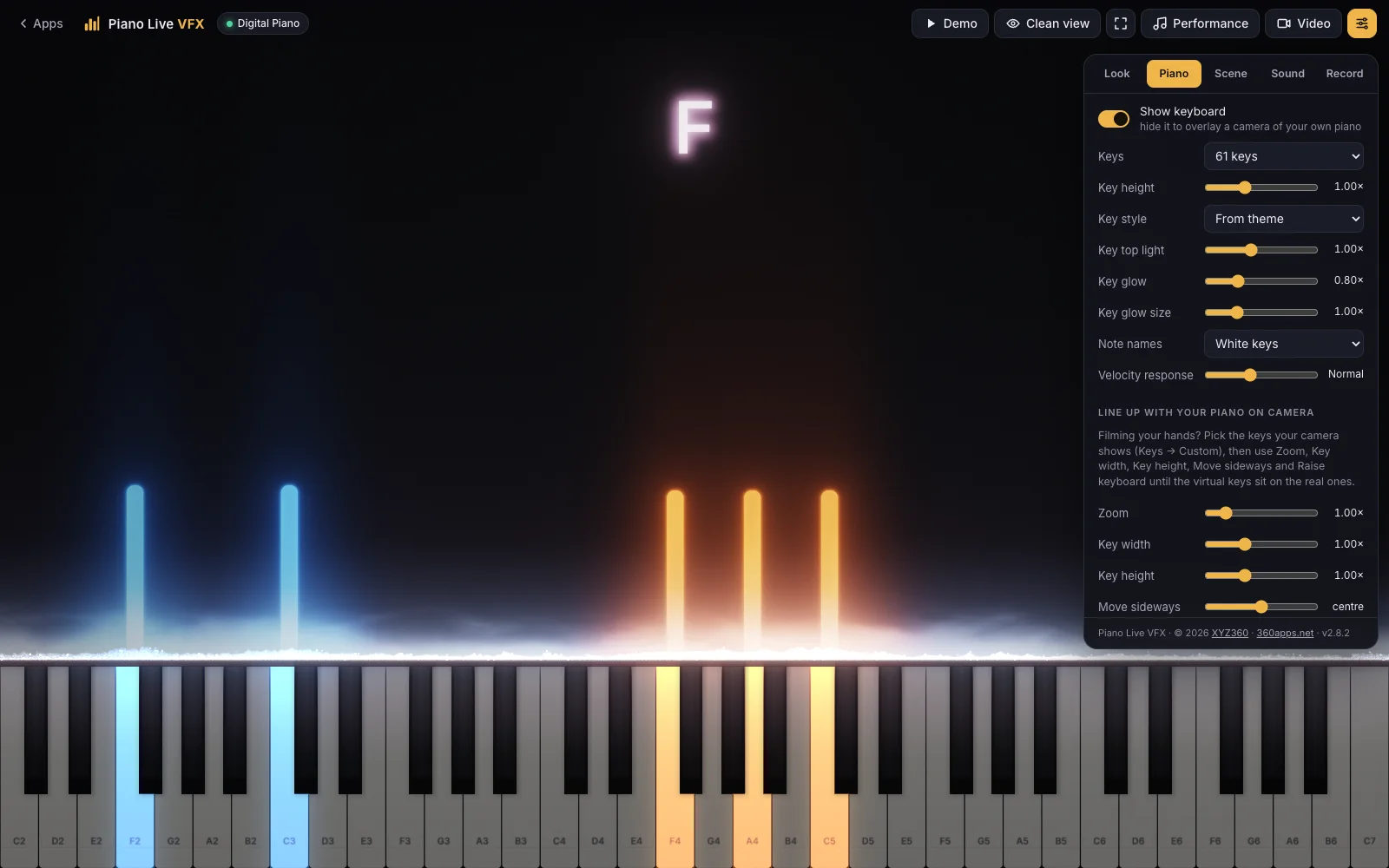
In the app, with the camera layer. Turn on Scene → Camera layer → Show camera and the effects play over your live camera picture. Use Mirror the camera if your piano looks backwards. Then open Piano → Line up with your piano on camera: pick the keys your camera shows (Keys → Custom), and use Zoom, Key width, Key height, Move sideways and Raise keyboard until the virtual keys sit on the real ones. Lower Key opacity to see your hands through the keys. The camera picture stays on your device.
In OBS, with a green screen. Set Scene → Background to Green screen and switch Show keyboard off in the Piano tab, so only the light is keyed. Press I for clean view, which hides every control and the cursor (Esc brings them back). In OBS, add a Window Capture of the browser window, put a Chroma Key filter on it, and place it above your camera source.
For teachers: let students see what your hands do
The same tool works for lessons. Show note names (C keys only, white keys or all keys), turn on Chord names to show the chord above the keyboard, and set Colour by to Left and right hand with a split point you choose. The Studio theme keeps it calm and clear on a projector or in a video lesson, and Keys goes from 25 to 88 so the range fits your piece.
If something goes wrong
| What you see | What to change |
|---|---|
| The pill says “MIDI not supported here” | Open the app in Chrome, Edge or Opera on a computer. Safari, iPhone and iPad have no Web MIDI. |
| “MIDI blocked” | Allow MIDI devices for the site in your browser’s site settings, then reload. |
| “No MIDI device” | Check the cable and the keyboard’s power, and close other programs that might be using the keyboard. |
| The keys light up but the app makes no sound | Expected for a MIDI keyboard. Use your piano’s sound, or turn on Sound → Play sound for the MIDI keyboard too. Sound also starts only after your first click, tap or key press. |
| The video has no piano sound | Set Audio to Microphone / audio interface, or use Export video of the replay with the built-in piano. |
| “Nothing was recorded” | Try again, or switch to Chrome. |
| The laptop gets hot or the fans spin up | Scene → Frame rate 30 fps, Quality Eco, or turn on Calm motion. |
| The green screen keys out badly in OBS | Switch Show keyboard off, so only the light is over the green. |
Ideas to try
- Record one take of a cover, then export it in two looks: a 9:16 Reel and a 16:9 YouTube video.
- Stream a practice session in clean view with your keyboard cam underneath.
- Export a MIDI file of a piece you’re learning and watch it fall onto the keys.
- Show a student a voicing with note names and chord names, then send them the video.
- Save a preset per series (a calm Moonlight look for ballads, Embers for rock covers) so every video in the series matches.
Good to know
- A MIDI keyboard needs Web MIDI: Chrome, Edge or Opera on a computer. On an iPhone or iPad you play by touch.
- On a phone the keyboard shows 25 keys and the settings move into a drawer above them.
- Which video format you get depends on the browser; MP4 is tried first.
- It’s a visualizer with a built-in piano sound, not a music editor: for editing notes, save the take as .mid and use your music software.
- Your camera and the images you add stay on your device.
Questions
What is a piano visualizer?
Software that turns the notes you play into graphics: usually a keyboard that lights up, with light, particles or falling notes above it. Some only play back MIDI files; live visualizers such as Piano Live VFX react to a MIDI keyboard as you play, and Piano Live VFX can also open .mid files.
Is there a piano visualizer online that works with a MIDI keyboard?
Yes. Piano Live VFX runs in the browser and connects to a MIDI keyboard through Web MIDI in Chrome, Edge and Opera on a computer. It connects by itself, also when you plug the keyboard in after opening the page, and the sustain pedal works. Without a keyboard you can play with your computer keys or by tapping the screen.
Can I turn a MIDI file into a piano video?
Yes. In the Record tab, open a .mid file, choose Replay as: Falling notes, and press Export video of the replay. The notes fall onto the keys, the built-in piano plays them, and the video is saved in the look and shape you picked.
Does the piano visualizer make sound?
Yes. A built-in piano (grand, felt or electric, with room reverb) plays when you use the computer keys, the screen, the demo or a MIDI file. Notes from a MIDI keyboard are silent by default because your own piano already makes the sound; one switch in the Sound tab turns the built-in piano on for MIDI too.
How do I record a piano visualizer video with sound?
Pick a shape (9:16 for Reels, TikTok and Shorts, 16:9 for YouTube, or 1:1), choose the audio (app sound, microphone or audio interface, or both), press R and play. Press R again to stop, and the video is saved to your downloads. The controls never appear in the recording. If your digital piano makes the sound, choose Microphone / audio interface.
Can I use it in OBS?
Yes. Press I for clean view, which hides every control, and add a Window Capture of the browser window. To layer the light over your camera, set Scene, Background to Green screen, switch Show keyboard off in the Piano tab, and add a Chroma Key filter to the window source in OBS.
Does it work on a Mac, iPad or phone?
On a Mac or Windows computer, use Chrome, Edge or Opera for a MIDI keyboard. Safari, iPhone and iPad have no Web MIDI, so there you play by tapping the screen or with the computer keys. On a phone the keyboard shows 25 keys you can play with several fingers.
Are my settings saved?
Yes, in the browser you use. You can also save a whole look as a preset, and export your presets to a file to move them to another computer.