
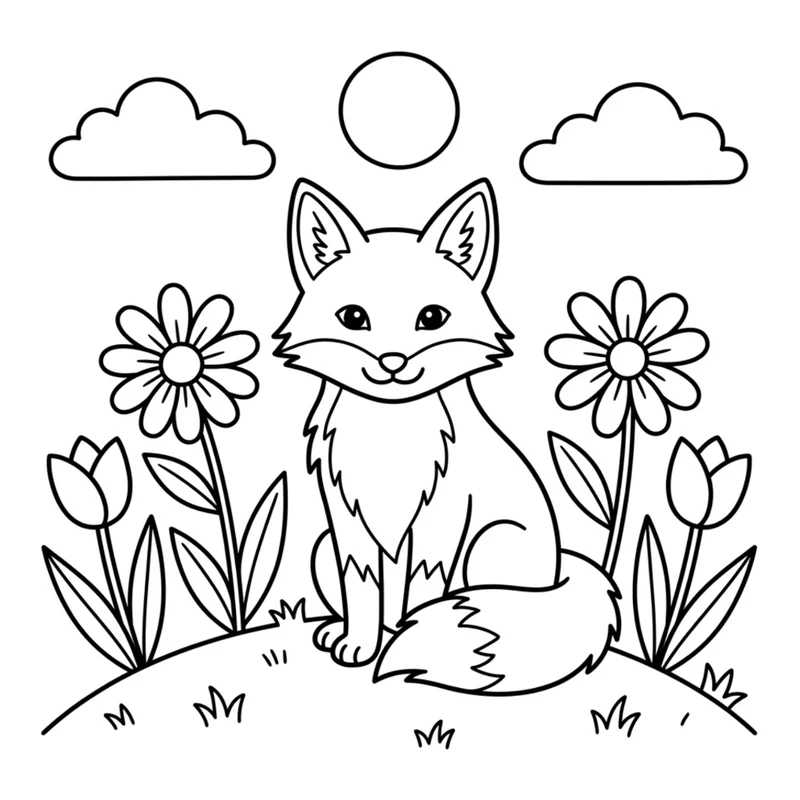
A fox in a meadow, a dinosaur astronaut, your dog as a superhero: if you can describe it, you can color it. Here is how to turn any AI-generated picture into a clean coloring page with two free 360apps tools, Image Vectorizer and Coloring Book, in about five minutes.
Create a picture in any AI image generator.
Trace it into line art in Image Vectorizer and click Send to Coloring Book.
Fill, paint and print it in Coloring Book.
Both apps are free with a 360apps account and run in your web browser, on a computer or a tablet. No design software and no tracing by hand.
Step 1: Ask the AI for a coloring page
Use any image generator you like: Gemini, ChatGPT, Midjourney, Adobe Firefly, Leonardo or another one. What matters is the style you ask for. A page you are going to color needs empty shapes with closed outlines, so ask for exactly that:
- Black outlines only on a plain white background.
- No colors, no fills, no gray, no shading and no texture: every area should be white, ready for your colors.
- Medium-thick, even lines, with every shape fully closed, so a fill stays inside it.
- Large, simple shapes and not too many tiny details.
- No text in the picture.
This is the prompt we used for the fox in this tutorial:
Step 2: Turn it into clean vector line art
The AI gives you a bitmap: its lines have soft gray edges, compression noise and sometimes tiny gaps. Image Vectorizer traces it into crisp vector outlines and turns every closed shape into an area the Coloring Book can fill with one click. The page also stays sharp at any print size.
Open Image Vectorizer and drop your picture on the upload area. The app traces it in your browser, so the image is not uploaded anywhere. Keep Coloring Book Ready Fills switched on (it is by default). For a black-and-white page like this one, the default settings are all you need: the fox above became 85 clean paths without touching a slider.
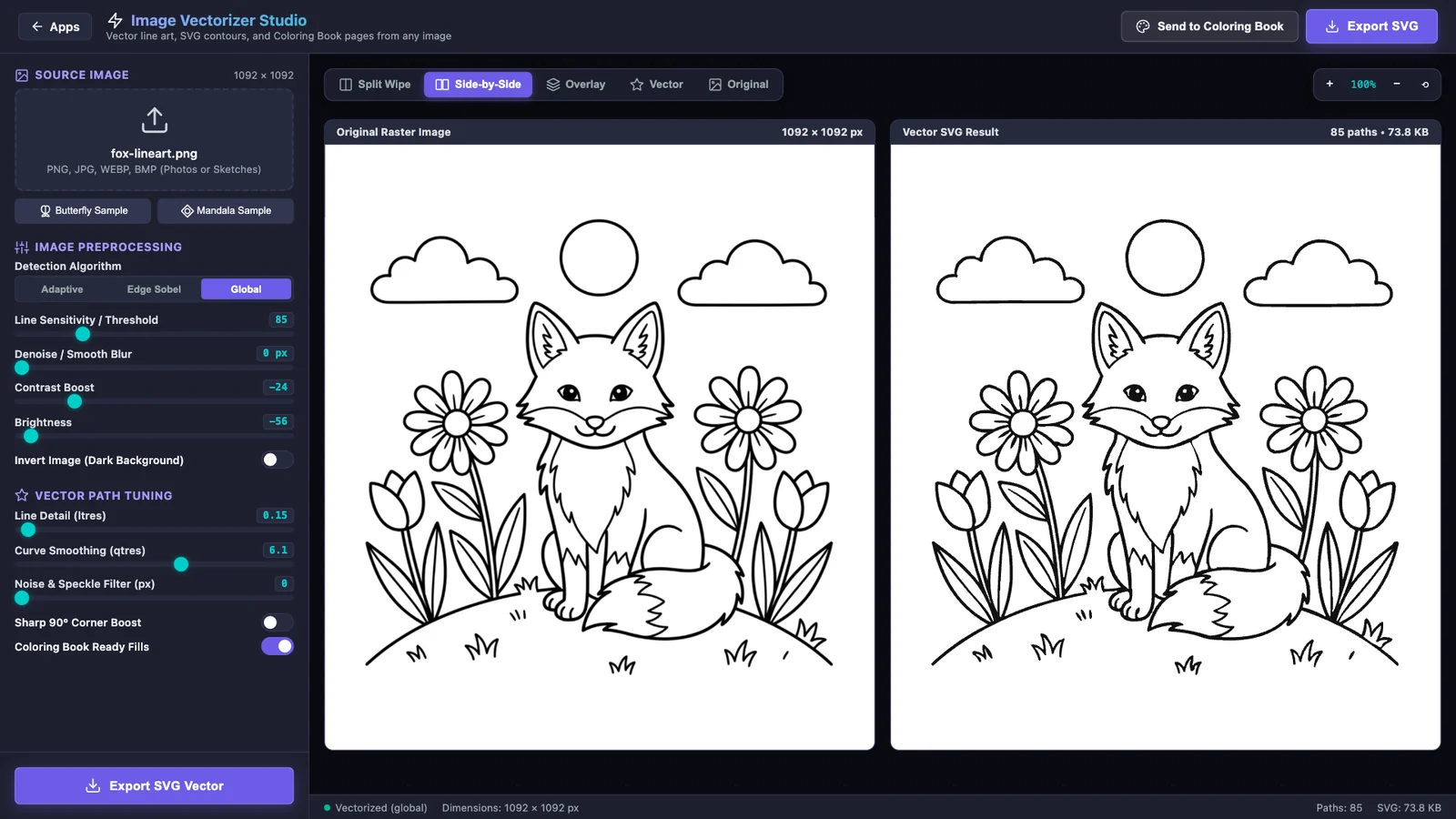
Switch the view to Side-by-Side or Split Wipe to check the result. Happy with the lines? Click Send to Coloring Book at the top right. You can also choose Export SVG to keep the vector file, for example to print it large or to use it with a cutting machine.
Starting from a picture in color?
You can also trace a colored illustration or a drawing, but Image Vectorizer turns everything darker than the Line Sensitivity threshold into black, so darker colors can come out as solid black shapes. Make the colors lighter and the threshold lower until only the outlines stay black. These values worked well for a colorful cartoon with bold outlines:
| Setting | Value | Why |
|---|---|---|
| Detection Algorithm | Global | Best for clean illustrations with even lighting |
| Brightness | +30 | Lifts the colored areas above the threshold |
| Contrast Boost | +20 | Keeps the outlines dark while colors get lighter |
| Line Sensitivity / Threshold | 70 | Only really dark pixels become lines |
| Noise & Speckle Filter | 8 px | Removes tiny specks |
Step 3: Color it in Coloring Book
The Coloring Book opens with your new page loaded and ready. It is also saved in the page gallery, so you can come back to it later.
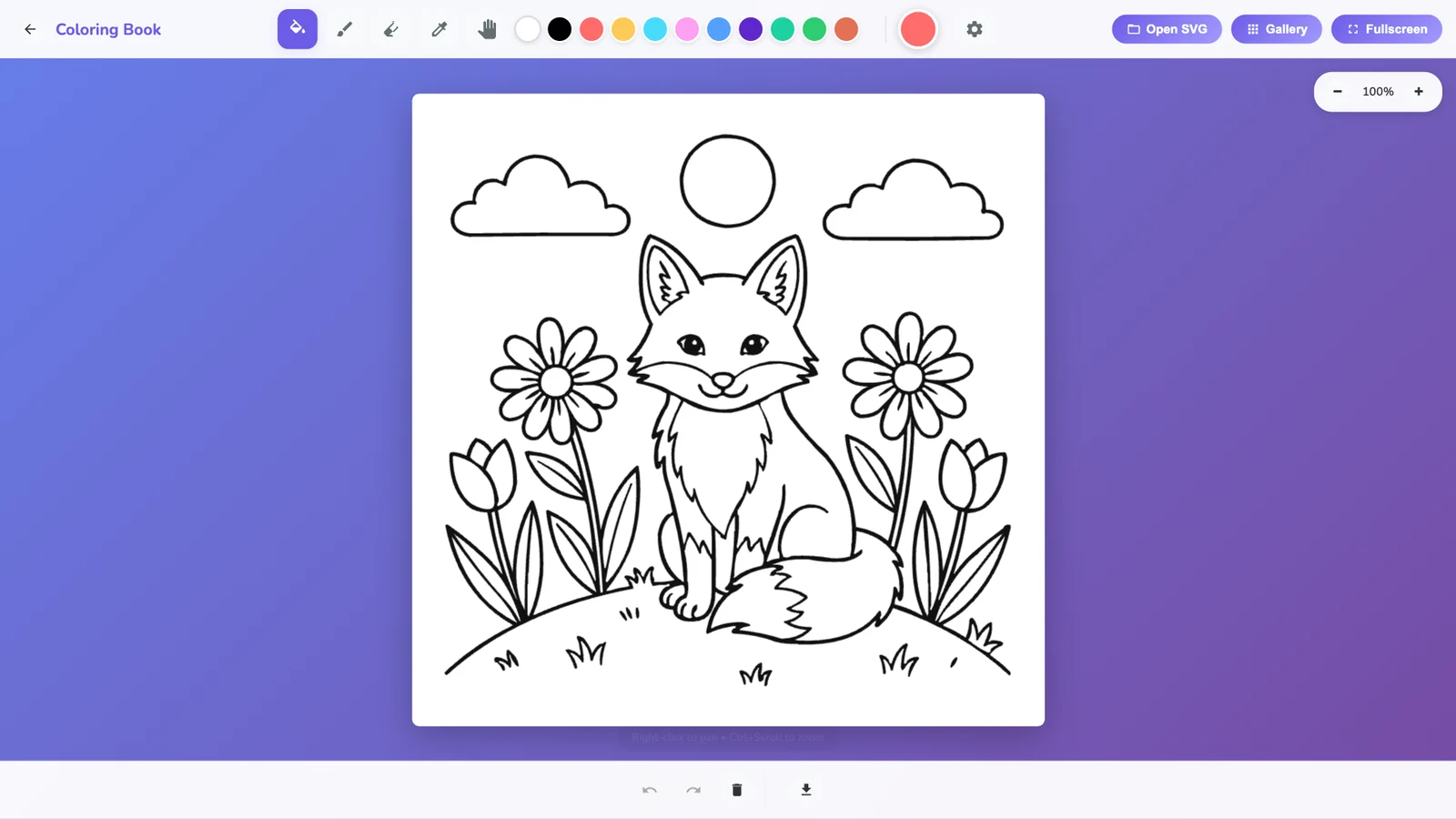
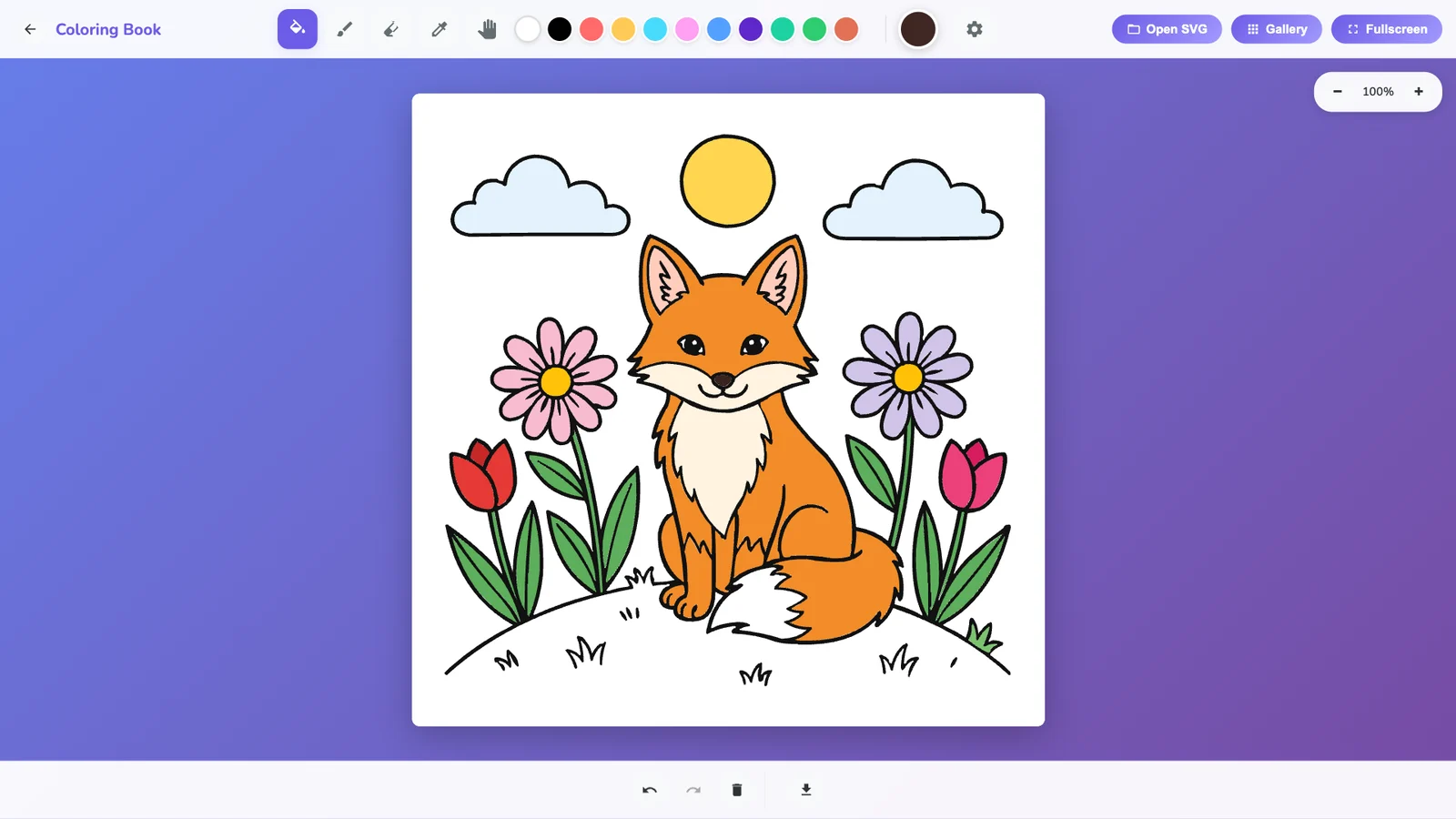
- Fill: pick a color and click or tap an area. It fills up to the lines, which makes it easy for young children too.
- Brush: paint shading and details with adjustable size, softness and flow. With a stylus such as Apple Pencil, the stroke follows your pen pressure. Set the brush area to Section to stay inside the shape where you start.
- Eyedropper, eraser, zoom and undo are all in the toolbar.
- Your work saves automatically in your browser.
- Download a PNG at three times screen resolution for crisp prints, or an SVG.
If the result is not quite right
| What you see | What to change |
|---|---|
| Areas turn into black blobs | The picture has colors or gray shading. Ask the AI again for “black outlines only, no fills”, or raise Brightness and lower Line Sensitivity. |
| Outlines are broken or too thin | Raise Line Sensitivity a little, or lower Brightness. |
| A fill spills into the next area | The outline between them has a gap. Raise Line Sensitivity slightly, or ask the AI for “thicker outlines, every shape fully closed”. |
| Lots of tiny dots | Raise the Noise & Speckle Filter. |
| Uneven lighting (a photo or a scan) | Try the Adaptive algorithm, or Edge Sobel for outlines only. |
| Too much detail to color | Lower Line Detail, or ask the AI for “simpler shapes, fewer details”. |
Ideas to try
- Birthday pages: the birthday child’s favorite animal doing their favorite sport.
- Classroom sets: one page per topic: planets, dinosaurs, the water cycle.
- Calm coloring for adults: ask for mandalas, botanical patterns or city skylines.
- Your pet: ask the AI to redraw a photo of your pet as a black-outline coloring page, then trace it.
Planning to sell your pages? Check the terms of the AI image generator you used first: they decide whether commercial use is allowed.
Questions
Do the apps cost anything?
No. Image Vectorizer and Coloring Book are free with a 360apps account.
Which AI image generator works best?
Any of them. The style you ask for matters more than the tool: black outlines only on a white background, no colors or shading, closed shapes and not too much detail.
Is my picture uploaded?
No. Image Vectorizer traces the image in your browser on your own device.
Can I use my own drawings or photos?
Yes. Scanned drawings work very well. Busy photos give many lines, so lower Line Detail and raise the speckle filter, or ask an AI to redraw the photo as a simple illustration first.
Does it work on an iPad or with a stylus?
Yes. Both apps run in modern browsers on tablets, and the Coloring Book brush responds to pen pressure where the browser supports it.
Can I print the pages?
Yes. Download a high-resolution PNG or an SVG from the Coloring Book, or export SVG or a 2x or 4x PNG from Image Vectorizer.